Use built-in ELN templates in NOMAD
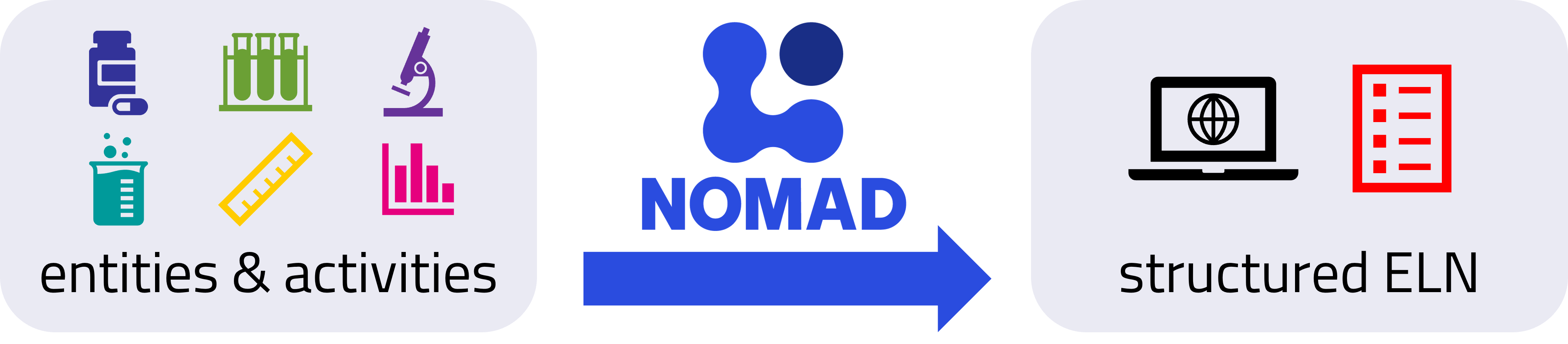
In this tutorial, we use NOMAD’s Electronic Lab Notebook (ELN) functionality to document an experiment in the NOMAD GUI. We follow the experimental workflow from defining substances and instruments to recording processing steps and measurements, using built-in ELN templates to structure and interlink the resulting entries. By the end of the tutorial, we will have documented an example experiment as a coherent, navigable ELN record in NOMAD.
What you will learn
In this tutorial, you will learn how to:
- Create and manage an ELN project in NOMAD
- Create ELN entries for substances, samples, instruments, processes, and measurements using built-in schemas
- Reference and interlink ELN entries to represent complete experimental workflows
- Document material processing steps and visualize them using workflow graphs
- Combine processes and measurements into a single experiment entry
- Search, filter, and explore your ELN entries using the NOMAD GUI and custom widgets
Before you begin
This tutorial requires no prior experience with NOMAD.
Before starting, make sure you have:
-
NOMAD user account
Creating and editing ELN entries requires a NOMAD user account. You can create an account by following the steps described in the How-to guides > ... > Create a NOMAD account. -
Basic familiarity with experimental workflows
Familiarity with preparation, processing, and measurements can be helpful, but is not required.
This tutorial uses an example experiment involving the preparation of solution-processed polymer thin films and the measurement of their optical absorption spectrum.
About the example experiment used for this exercise
This exercise uses an example experiment involving the preparation and characterization of poly(3-hexylthiophene-2,5-diyl) (P3HT) thin films. The experiment consists of three main activities: preparing solutions, depositing thin films, and measuring optical absorption.
-
Preparing solutions: The polymer powder is mixed with a solvent in predefined quantities to achieve the desired concentration. A scale is used to accurately weigh the polymer powder, ensuring precise solution concentration.
-
Depositing thin films: The prepared solution is used to create a thin film on a glass substrate through spin-coating. By carefully controlling the spin speed and duration, the desired film thickness is achieved.
-
Measuring optical absorption: The optical absorption spectrum of the thin film is acquired using a UV-Vis-NIR spectrometer. The measurement results are saved as a
.csvfile for further analysis.
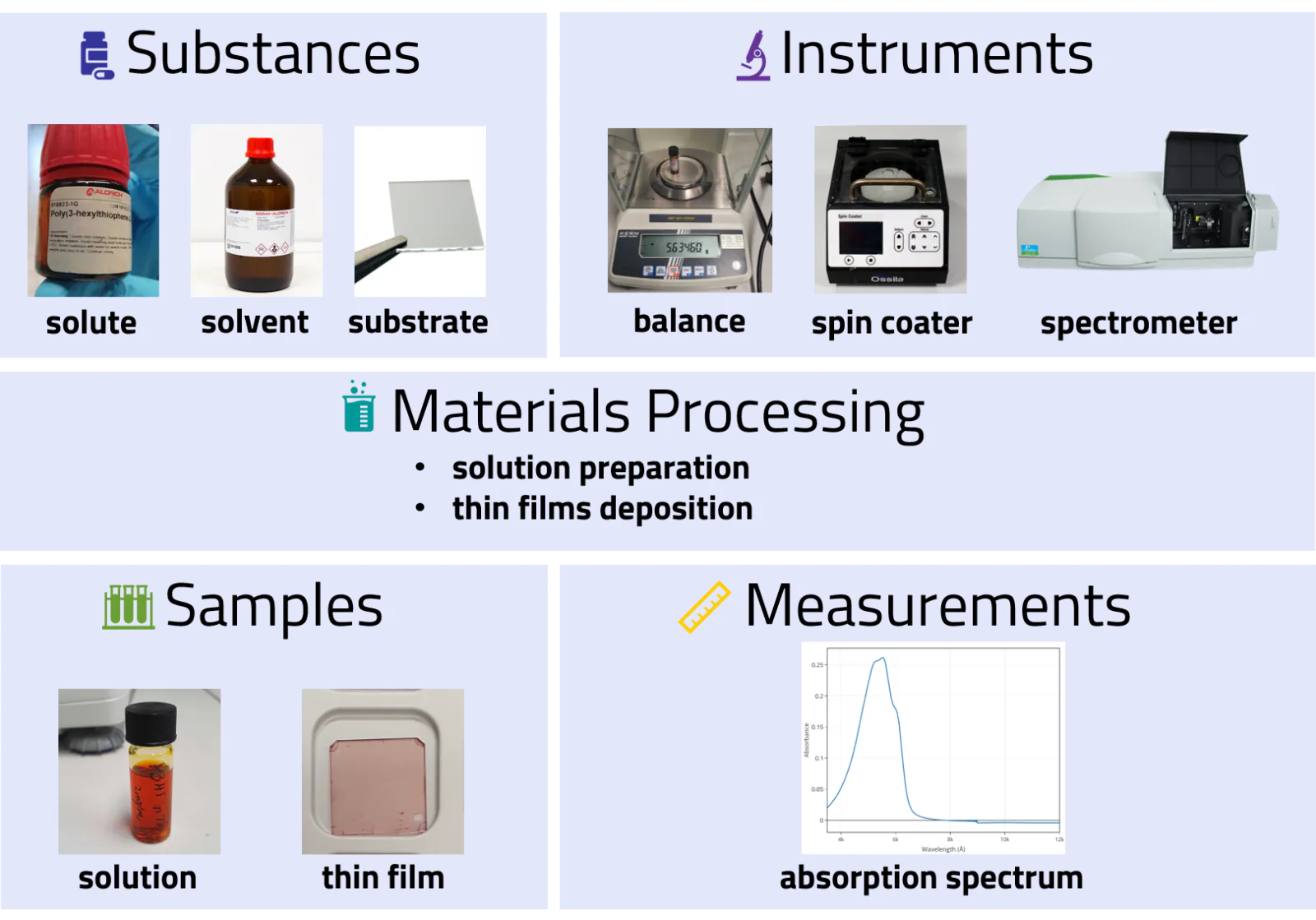
To effectively document this experiment, you will create and interlink electronic lab notebook (ELN) entries in NOMAD. These entries will include key entities such as substances, instruments, and samples, as well as activities like material processing and measurements. By structuring the data in this way, you get a comprehensive and FAIR-compliant record of the experiment.
Create a new ELN project
Create a NOMAD project to contain the ELN entries and files related to your experiment. Follow the steps in Tutorials > ... > Create a new project and name the project P3HT thin films ELN.
Create ELN entries
Next, create entries for the substances, samples, instruments, processes, and measurements in your experiment. Each entry uses a built-in schema, a template that provides predefined fields and supports consistent documentation.
To create an ELN entry from a built-in schema:
- Click NEW ENTRY on the OVERVIEW tab of your project page.
- Open the BUILT-IN SCHEMAS tab and select the built-in schema for your entry. To find a schema, enter its name in the Search schemas field.
- Enter a Filename and click CREATE. NOMAD adds the
.archive.jsonextension to the filename.
NOMAD creates the entry and opens it. You can then fill in its fields.
Use the arrow buttons ⬅️➡️ below to follow the steps for creating an ELN entry from a built-in schema.
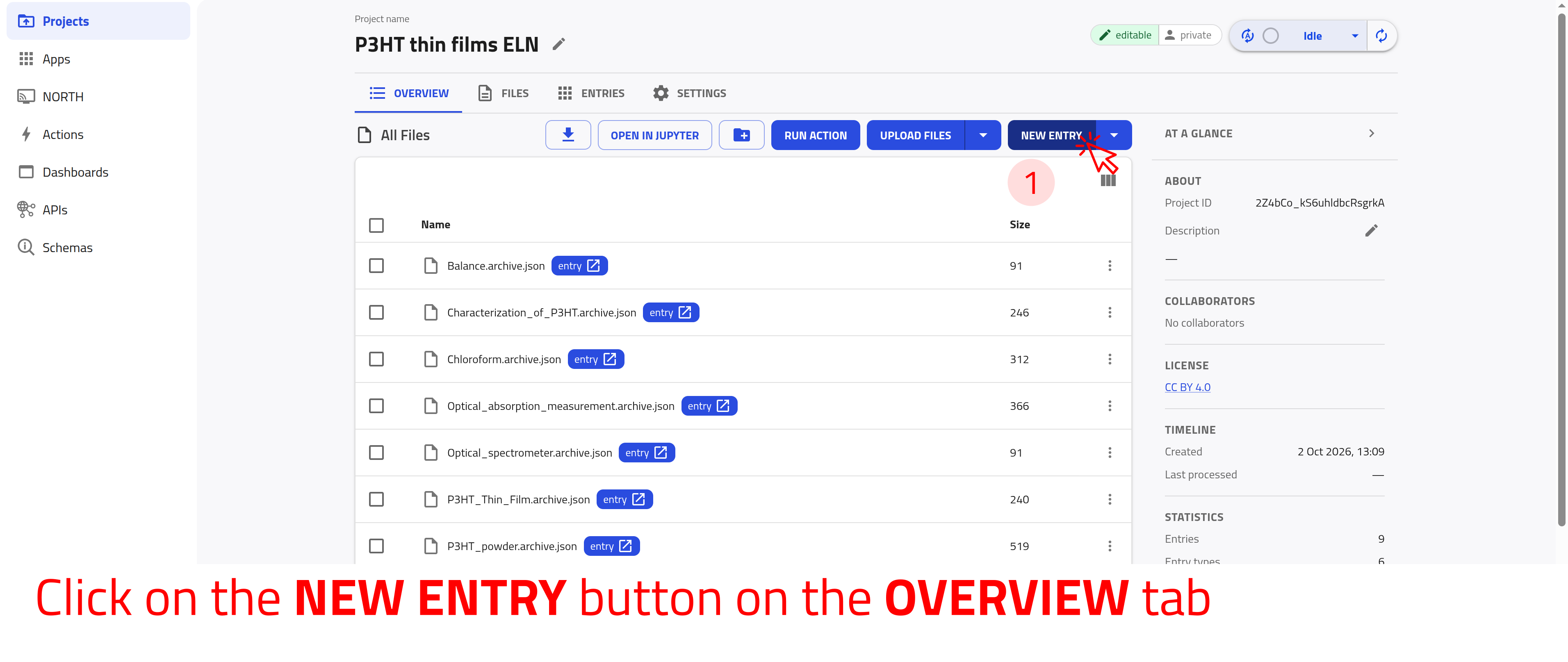
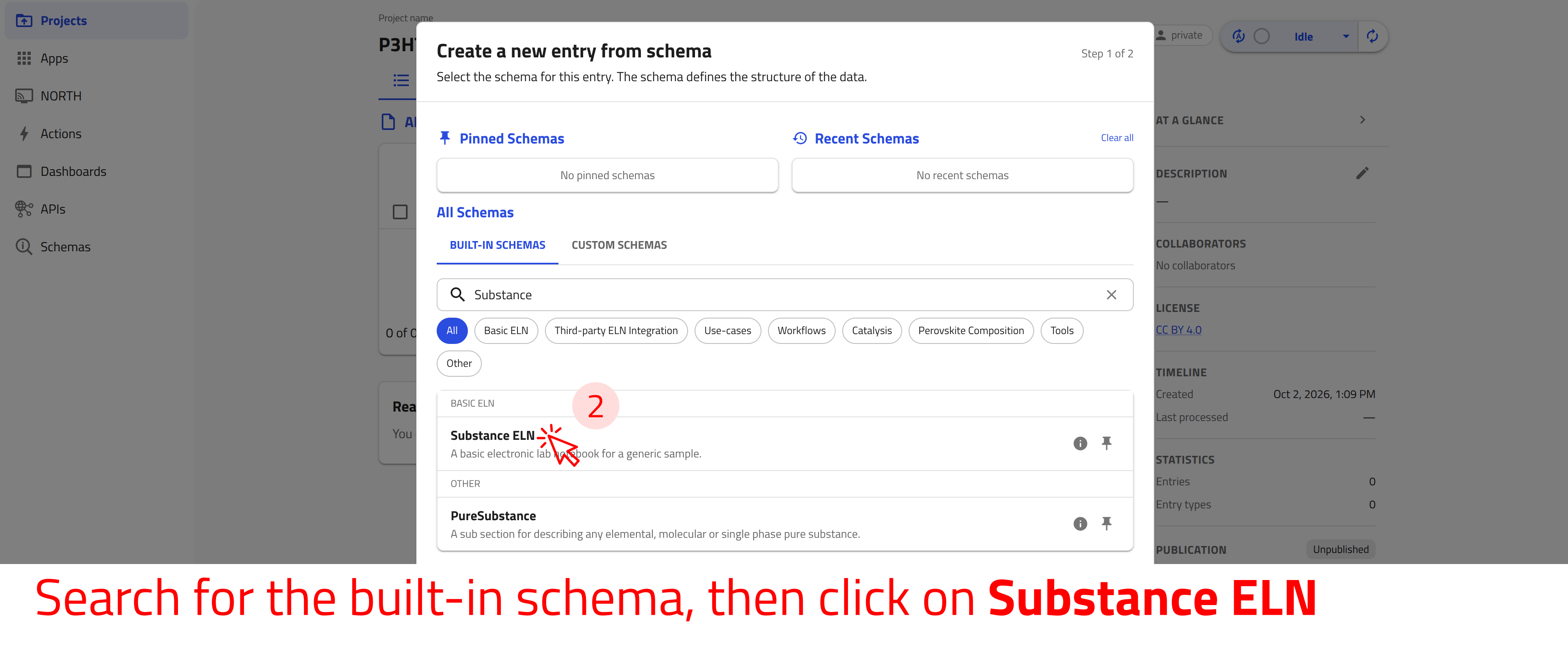
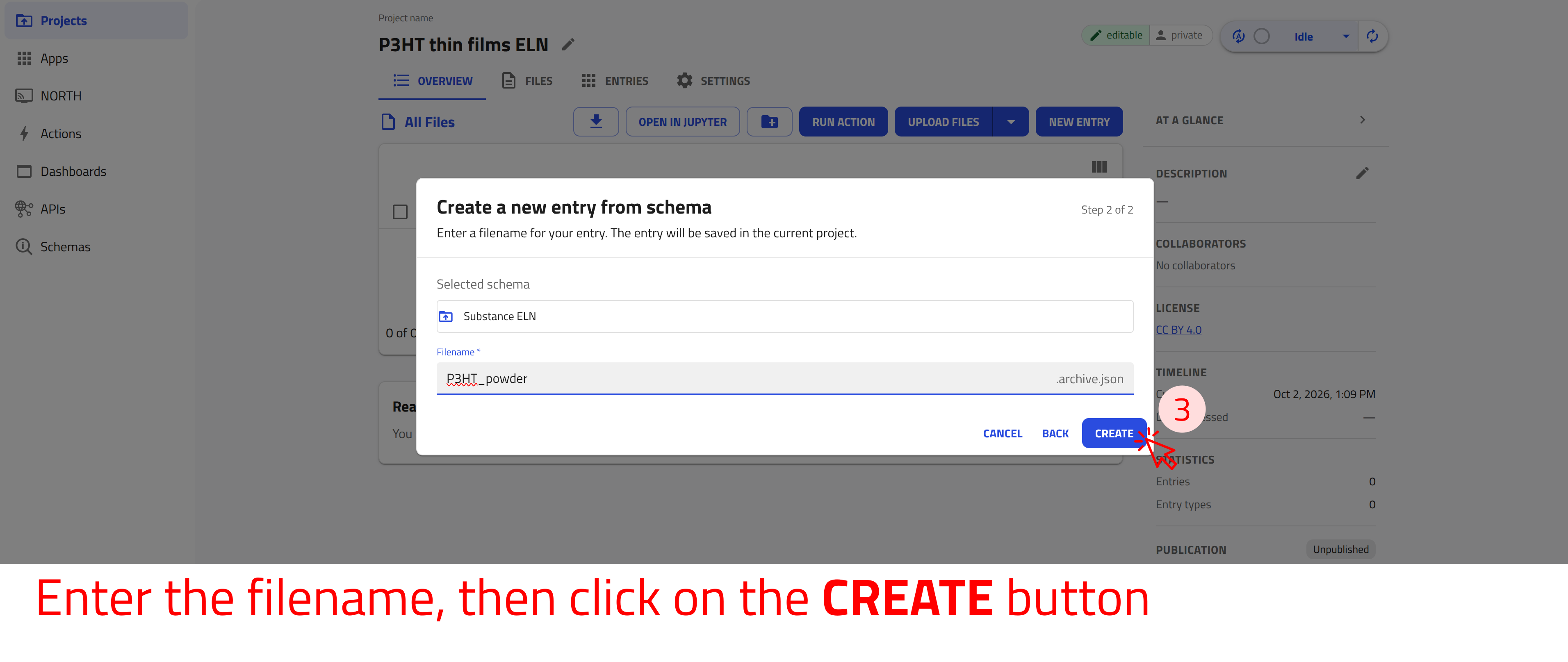
The following sections refer to these steps and tell you which built-in schema and filename to use for each entry.
Create a substance entry
Create an entry for the P3HT powder. Follow the steps in Create ELN entries: select Substance ELN as the built-in schema and enter P3HT_powder as the Filename.
NOMAD creates and opens the entry. You can then fill in its fields and click SAVE to save your changes.
NOMAD automatically fills in the substance name (from the filename), the Datetime, and the substance ID. You can edit these values if needed. Complete the substance entry as follows:
- Enter
Regioregular poly(3-hexylthiophene-2,5-diyl) powder for preparing P3HT solutions.in the detailed substance description field. Optionally, add an image of the substance or its chemical structure to this field. - Click the (+) button next to the Tags field and enter
polymer. Tags improve the searchability of your entries. - Click the (+) button next to Pure substance under Subsections.
- Click CHANGE SCHEMA and select PubChem Pure Substance Section.
- Click the check mark (✓) next to CHANGE SCHEMA to confirm your selection.
- Enter
P3HTin the substance name field. - Click SAVE.
NOMAD searches PubChem for the substance name and fills in the other fields, e.g., Iupac name, Molecular formula, Molar mass, and Cas number. For P3HT, PubChem provides the data of its monomer, 3-hexylthiophene.
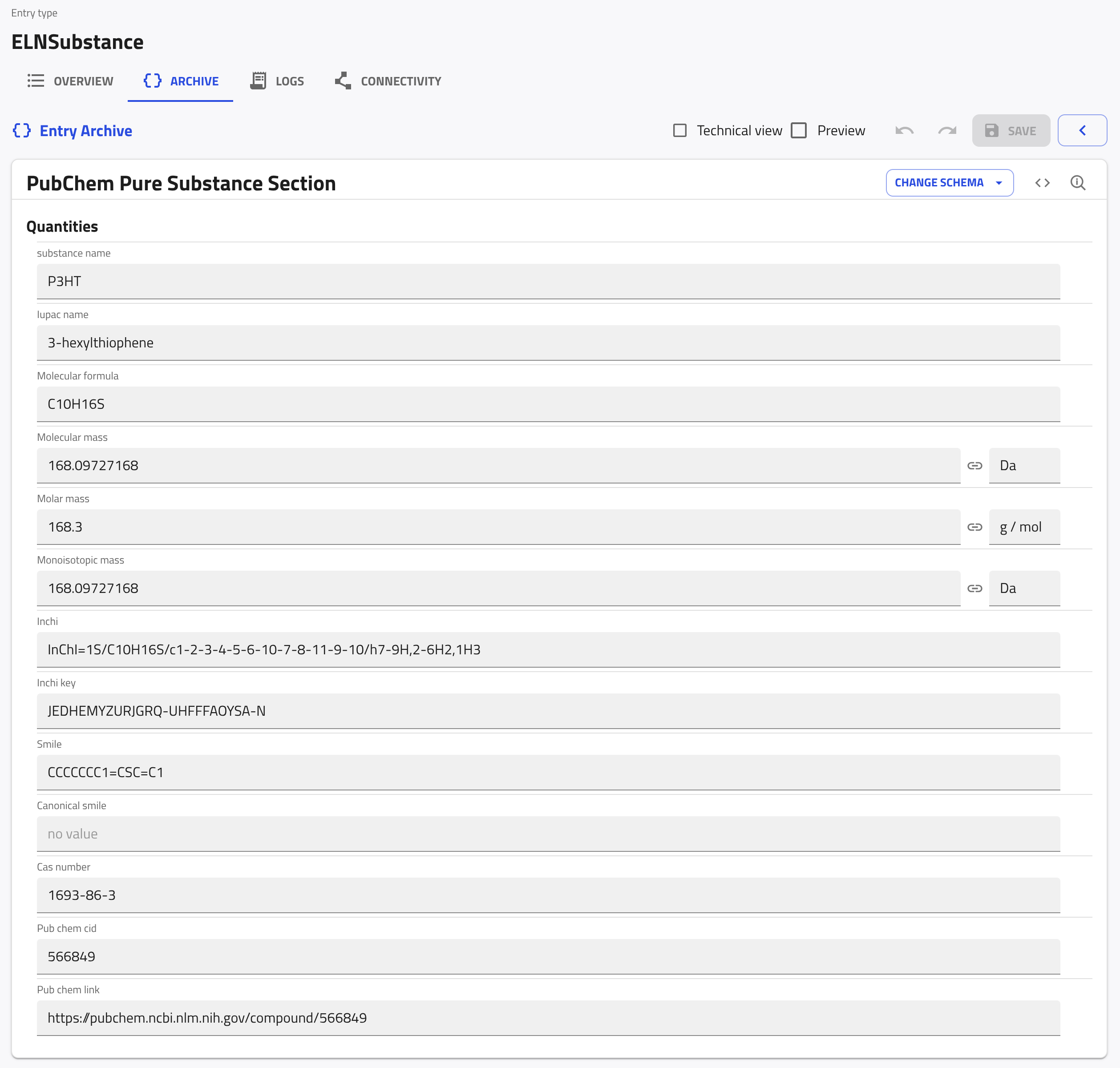
Create an ELN entry for substances
Create an ELN entry with the Substance ELN schema for each of the following substances. Use the given filenames:
- Chloroform:
Chloroform - Glass substrate:
Glass_substrate
Include as many details as you like, e.g., a detailed substance description and Tags. For chloroform, add a Pure substance subsection with the PubChem Pure Substance Section, and enter chloroform as its substance name.
Create a sample entry
Create an entry for the P3HT thin film. Follow the steps in Create ELN entries: select Generic Sample ELN as the built-in schema and enter P3HT_Thin_Film as the Filename.
Fill in the fields of the sample entry in the same way as for the substance entry. In addition, reference the substance from which the thin film is made:
- Click the (+) button next to Components under Subsections.
- Click CHANGE SCHEMA and select SystemComponent.
- Click the check mark (✓) next to CHANGE SCHEMA to confirm your selection.
- Click the pencil icon at the right end of the System field.
- Click This project in the Select section dialog to show only the entries of your project.
- Click
P3HT_powder.archive.json, and then click Substance ELN (./data) below it. - Click SAVE.
The System field now references the P3HT_powder entry, and NOMAD fills in the component label with the substance name.
You can reference other entries in the same way wherever an ELN field refers to another entry, e.g., to instruments, samples, or input substances.
Create an ELN entry for a sample
Create an ELN entry for the P3HT solution in chloroform with the Generic Sample ELN schema and the filename P3HT_solution_in_CF. Reference its components, the P3HT_powder and Chloroform entries, in the same way as above: add one component, click SAVE, click data in the path at the top, and add the second one.
Include as many details as you like, e.g., a Description and Tags.
Create an instrument entry
Create an entry for the balance that is used to weigh the polymer powder. Follow the steps in Create ELN entries: select Instrument ELN as the built-in schema and enter Balance as the Filename.
As for the substance entry, NOMAD has already filled in the name, the Datetime, and the ID. Fill in further fields, e.g., Description and Tags, and click SAVE.
Create an ELN entry for an instrument
Create an ELN entry with the Instrument ELN schema for each of the following instruments. Use the given filenames:
- Optical spectrometer:
Optical_spectrometer - Spin coater:
Spin_coater
Include as many details as you like, e.g., a Description and Tags.
Create a process entry
Create an entry for the preparation of the P3HT solution process. Follow the steps in Create ELN entries: select Material Processing ELN as the built-in schema and enter Preparation_of_P3HT_solution as the Filename.
Enter the process start time in starting Time and complete additional fields, such as Location, Description, and Tags. Then reference the Balance entry as the instrument used to weigh the powder:
- Click the (+) button next to Instruments under Subsections.
- Keep InstrumentReference and click the check mark (✓) next to CHANGE SCHEMA to confirm it.
- Reference the
Balanceentry in the instrument reference field, in the same way as you referenced the P3HT powder in the sample entry. - Click SAVE, and then click data in the path at the top to return to the process.
Reference a sample to your process ELN
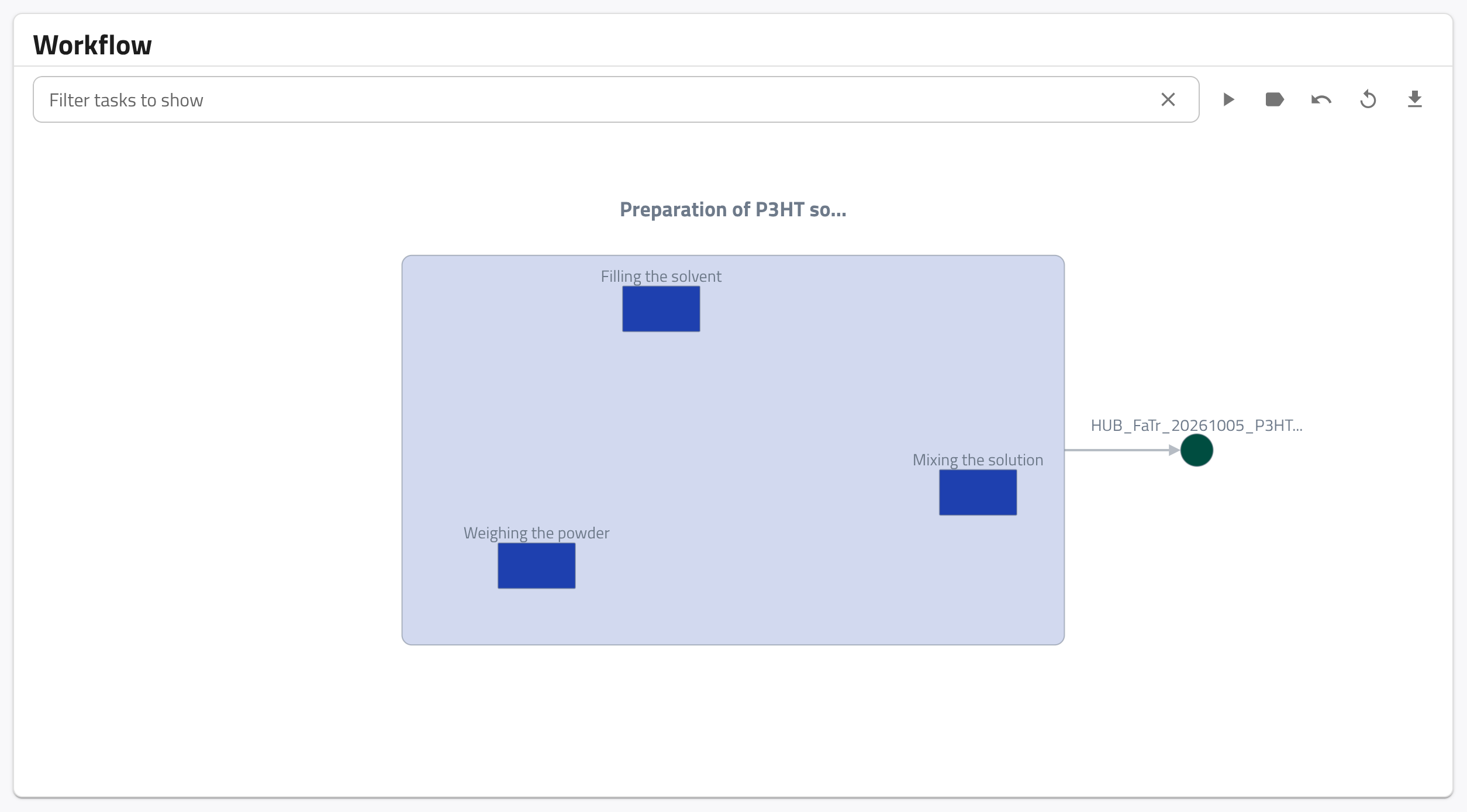
For the process entry created above, reference the sample entry P3HT_solution_in_CF in the Samples subsection, click SAVE, and then click data in the path at the top to return to the process. NOMAD then shows this sample as the output of the process in the workflow graph, as described below.
If this sample entry does not exist yet, first create it with the Generic Sample ELN schema, as described in the sample task above.
Defining the steps of a process
The Steps subsection records each stage of a process and displays the stages in an interactive workflow graph.
Add the following steps to the Preparation of P3HT solution process:
- Weighing the powder
- Filling the solvent
- Mixing the solution
To add the steps:
- Click the (+) button next to Steps under Subsections.
- Enter
Weighing the powderin the step name field. - Enter
minutein the unit field next to Duration, select it from the list, and enter5as the duration. - Click SAVE.
- Click data in the path at the top to return to the process, and add the other two steps in the same way:
Filling the solventwith a duration of2minutes andMixing the solutionwith a duration of30minutes.
You can also fill in the starting time and a Comment for each step. If you enter a Duration for every step, NOMAD calculates the starting time of each step from the process starting Time and fills in the process ending time.
NOMAD uses the steps to create a workflow graph. To view it, click the OVERVIEW tab of the entry and scroll down to the Workflow card. The process steps appear as tasks, and entries referenced under Samples, such as P3HT_solution_in_CF, appear as outputs.
Create a measurement entry
Create an entry for the optical absorption measurement. Follow the steps in Create ELN entries: select Measurement ELN as the built-in schema and enter Optical_absorption_measurement as the Filename.
Complete the measurement fields, such as starting Time, Location, Description, and Tags. Then add the instrument and measurement result:
- Click the (+) button next to Instruments under Subsections.
- Keep InstrumentReference and click the check mark (✓) next to CHANGE SCHEMA.
- Reference the
Optical_spectrometerentry from the instrument task in the instrument reference field, in the same way as you referenced entries before, and click SAVE. - Click data in the path at the top, and then click the (+) button next to Results.
- Enter
Absorption spectrumin the name field andAbsorption maximum at 552 nm.in the Result field. You can also add images to the Result field. - Click SAVE.
Integrate your experiment
Once all substances, samples, processes, and measurements are defined, you can integrate them into a structured workflow using the Experiment ELN schema. The Experiment ELN schema allows linking processes and measurements into a single entry for a comprehensive overview of your experimental workflow.
Create an entry for the characterization of P3HT. Follow the steps in Create ELN entries: select Experiment ELN as the built-in schema and enter Characterization_of_P3HT as the Filename.
The Steps subsection references the processes and measurements that make up the experiment and defines their order in the workflow.
Add Preparation_of_P3HT_solution and Optical_absorption_measurement as steps of your experiment in the order in which they were performed:
- Click the (+) button next to Steps under Subsections.
- Reference
Preparation_of_P3HT_solutionin the Activity field, in the same way as you referenced entries before. - Click SAVE.
- Click data in the path at the top, and add a second step for
Optical_absorption_measurementin the same way.
NOMAD fills in the step name, the starting time, and the activity ID of each step from the referenced entry.
Explore and search your ELN
Download the example file for this exercise
Download the example ELN data.
The ZIP file contains several NOMAD ELN entries in .json format.
These entries have been created using the NOMAD ELN built-in schema, organized into folders, and categorized with custom tags.
To follow the search example below, create a new project named Example NOMAD ELN and upload the example file with UPLOAD FILES. Continue when the processing status shows Completed.
Use the ENTRIES tab to search and filter the substances, samples, instruments, processes, and measurements in your project.
First, add two terms widgets to filter the project entries by ELN section type and custom tag:
- Open the ENTRIES tab of the
Example NOMAD ELNproject. - Click TERMS.
- Enter
elnin the Search quantity field and selectresults.eln.sections. - Enter
My ELN sectionsin the Title field and click DONE. - Click TERMS again.
- Enter
elnin the Search quantity field and selectresults.eln.tags. - Enter
My ELN tagsin the Title field and click DONE.
You now have a search interface that supports keyword searches and filtering by ELN section type and custom tags.
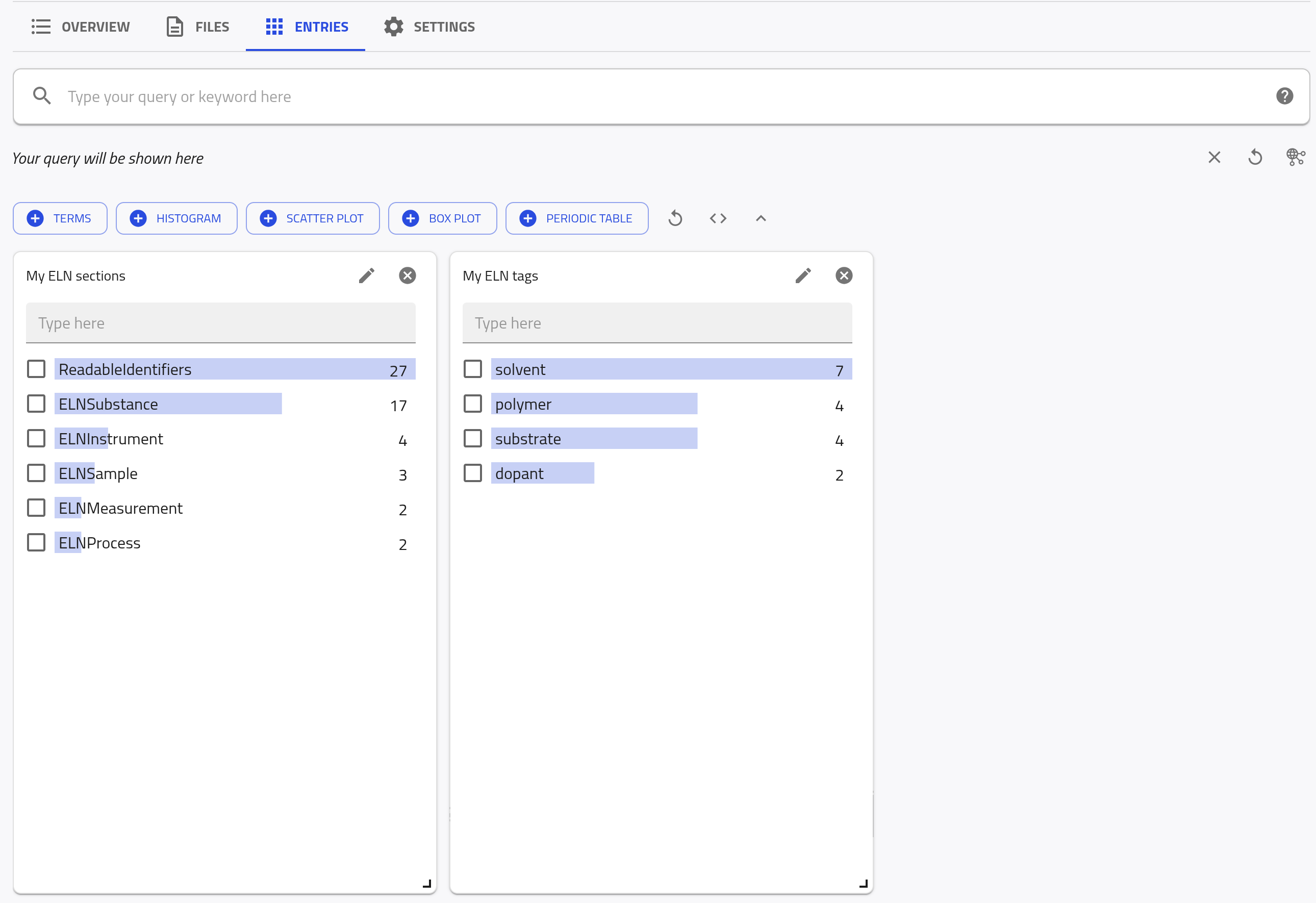
To filter the entries, select polymer in the My ELN tags widget. Then enter P3HT in the search bar and press Enter. NOMAD displays entries that match both the selected tag and the search term. In this example, only the P3HT entry is left.